
3–5 Minute Reels From Youth Sports Video Analysis for Parents

Youth sports video analysis, in the way that matters to parents and athletes today, means using an automated single-player capture system, a wearable sensor paired with a tracking camera and app, to film and save highlight clips without anyone holding a camera. The payoff is hands-free footage built for recruiting: film in 720p or 1080p, save clips the moment they happen, and lead your reel with your best plays.
How Automated Single-Player Tracking Systems Work
A wearable sensor is the heart of the system. The athlete clips it on before the game, and it tags that player’s location so the tracking camera can follow them specifically, not the ball, not the crowd, not whichever kid is closest to the action.
The camera uses that signal to keep the athlete framed automatically. Some systems also buffer a few seconds of play before and after each tagged moment, so a highlight doesn’t start a half second after the shot already happened. I-TRX’s Ultra Highlight Pro feature works this way, holding onto recent footage so a big play still gets captured even if the save command comes a beat late.
Once a clip is tagged, it typically saves straight to a connected phone. On I-TRX, that means highlights land on an iPhone in real time, ready to review between innings or quarters instead of sitting on a memory card until someone gets home and loads footage into an editor.
The output is usually a folder of short, individual clips rather than one long game film. That’s useful for recruiting, since coaches want to see plays, not full games, but it does mean a parent or athlete still has to choose which clips make the final reel. The sensor and camera solve the filming problem. The editing decisions are still yours to make, and the next section covers exactly how to make them.
How to Build Recruiter-Ready Highlight Reels From Automated Footage
Good footage is only half the job. College coaches and recruiting coordinators have clear, fairly specific expectations about what a usable reel looks like, and ignoring them is one of the easiest ways to get a video skipped.
Length and clip count matter more than people think. Recruiters generally prefer reels that run 3 to 5 minutes and include about 15 to 30 of an athlete’s best plays, not a 12-minute montage of every touch from a single game. Automated tracking actually makes this easier to hit, since the system already breaks the game into individual tagged clips instead of one long file you’d have to cut down yourself.
Ordering is just as important as length. Coaches often decide within the first 20 to 30 seconds whether to keep watching, so your strongest 3 to 5 plays belong at the very front, not buried in the middle in chronological order.
Video standards to check before you export:
Shoot and save in 720p or 1080p so plays are clearly visible on review.
Keep the camera horizontal, not vertical, for standard recruiting formats.
Favor a steady, elevated angle over a shaky sideline view.
Avoid heavy filters or transition effects that distract from the play itself.
Identification is where a lot of good footage gets wasted. A clip of a great tackle or a clean three-pointer means nothing if the coach can’t tell which player is yours. Recruiters respond well to simple visual markers, like a freeze frame with an arrow or circle on the athlete, plus an intro slate listing name, position, and graduation year.
For hosting, YouTube and Hudl remain the standard choices, both because recruiters already expect those platforms and because they handle resolution well without forcing a download. Our guide on recruiting video format walks through timing and structure in more detail if you want a template to follow clip by clip.
Practical Setup and Game-Day Tips for Automated Tracking Cameras
Getting clean footage starts well before kickoff. A few setup habits make the difference between a reel full of usable plays and a frustrating afternoon of lost tracking.
Mount the camera at an elevated, steady position with a clear sightline to the field; our post on camera placement at youth games covers sport-specific height recommendations.
Charge the camera and bring a spare battery, since outdoor games often run longer than expected.
Pair the sensor to the athlete before warmups, not during the first quarter, so tracking locks on from the opening whistle.
Confirm the phone has a stable connection and the app has the permissions it needs to save and share clips in real time.
Do a quick test clip before the game starts to confirm the sensor and camera are talking to each other correctly.
Buffered recording is what catches the plays that happen faster than anyone can react to. Instead of starting a recording exactly when you press save, a buffer holds onto the last several seconds continuously, so the system can reach back and grab the moment that already happened. Check that this setting is turned on before the game, since it’s the difference between catching the goal and catching the celebration after it.
Pro Tip: If tracking seems to drift to another player mid-game, check the sensor’s fit first. A loose or shifted sensor is the most common cause of lost tracking, more often than any camera or app issue.
If clips come out blurry or cut short, the usual culprits are a weak phone connection or low battery on either the camera or sensor, both worth checking before assuming something is broken.
Privacy, Consent, and Storage for Recording Minors
Filming your own child at a game is different, legally and practically, from building a searchable video library tagged to one player across a season. FERPA generally applies to recordings that schools maintain as education records, not footage parents capture and keep themselves, but the line gets blurrier once footage is shared, uploaded, or distributed beyond the family.
Many leagues and clubs have caught up to this. It’s increasingly common for media policies to require written releases before identifiable footage of players, especially minors, gets posted or promoted publicly, and some policies also restrict filming zones or drone use.
Sensor-tagged footage raises the stakes slightly, since it creates an indexed, searchable record tied to one specific child rather than a general game video. That’s worth a short, direct permission request to the league or club: explain what the system tracks, who can see the footage, and how it will be stored, and get that in writing. Our breakdown of filming youth sports legally walks through this in plain terms if you want help drafting that request.
Game-Day Quick Checklist
Print this or save it to your phone before the next game.
Pre-game: charge both camera and sensor, confirm pairing, run a test clip, check the athlete’s ID in the app.
During the game: glance at the camera’s sightline between plays, confirm instant-save is working, jot down timestamps for any plays you want to flag later.
Post-game: export clips, tag the best ones for your reel, upload to YouTube or Hudl, and back up the full folder somewhere outside your phone.
Packing up: store the sensor and camera somewhere safe and plug both in that night so they’re ready for the next game.
Integration With Youth Coaching and Analysis Platforms
Most families don’t use automated tracking footage in isolation. Once clips are saved, they usually get pulled into whatever platform a team or club already uses for film review and recruiting, most commonly Hudl, YouTube, or a team-specific app a coach has set up.
The key is export flexibility. Clips saved instantly to a phone can be uploaded directly into these platforms without needing a separate editing step first, since the clips are already trimmed to the moment. That matters for coaches running regular film sessions, since they can drop a parent’s clip straight into a team playlist alongside game film from other sources.
For recruiting specifically, individual highlight clips tend to work better as standalone uploads than as part of a shared team account, since recruiters are searching for one athlete, not browsing a roster. Keeping clips organized by date and opponent, even in a simple folder structure, makes it much easier to hand footage off to a coach who wants to build a season-long reel later.
None of this requires special software on the capture side, and integrating automated clips with scouting workflows follows five steps coaches and scouts use to apply verified game data. The real integration work happens after the footage exists, in how it gets labeled, sorted, and shared with whoever is reviewing it next, whether that’s a position coach building a scouting packet or a parent assembling a recruiting reel.

Using AI and Computer Vision Responsibly in Tracking Data
The AI inside a tracking camera is doing one specific job: following a tagged sensor accurately enough to keep that athlete framed through cuts, changes of direction, and crowded plays. Understanding that scope helps set realistic expectations for what the footage will and won’t show.
Computer vision in these systems is built for framing and tracking, not for generating statistics or automated scouting reports. Treat the clips it produces as raw footage, not finished analysis. The value comes from what a parent, athlete, or coach does with that footage afterward: reviewing plays, flagging technique, and deciding which clips actually belong in a recruiting reel.
It’s also worth remembering that tracking accuracy depends partly on conditions you control, like sensor placement and camera angle, not just the underlying AI. A system can only follow what it can clearly detect, so setup habits covered earlier in this guide matter as much as the technology itself.
Used this way, AI-driven tracking removes the burden of manual filming without pretending to replace coaching judgment. It gets you the footage. The evaluation still belongs to the people who know the athlete and the sport.
Optimizing Sensor Placement and Calibration
Sensor fit affects tracking accuracy more than almost any other single factor. A sensor that shifts during play, rides up, or sits loosely can cause the camera to lose its lock and drift toward another player, which is the single most common complaint with wearable tracking systems.
Fit the sensor snugly, following the manufacturer’s recommended placement, usually centered on the torso or a strap position, rather than clipping it wherever is convenient. Check it again at halftime if the game involves a lot of contact or diving, since equipment shifts more than people expect during active play.
Calibration matters too, particularly at the start of a game or after a battery swap. Running a short test clip before kickoff confirms the sensor and camera are paired correctly and the tracking lock is solid, rather than finding out three quarters in that footage has been following the wrong player.
Lighting and distance also affect tracking quality, even with a sensor doing the heavy lifting. Keep the camera at a consistent, elevated distance from the field rather than moving it between quarters, since repositioning increases the chance of losing the sightline needed for clean tracking.
A few minutes of setup discipline before the game prevents most of the tracking issues families run into, and it’s far less frustrating than discovering the problem after the fact.

Actionable Insights From Automated Game Footage
Once a season’s worth of clips builds up, patterns start showing up that are hard to see in the moment. A parent or coach reviewing clips side by side might notice an athlete consistently drifts out of position on defense in the second half, or that a hitter’s best contact happens on a specific pitch location.
Automated clips make this kind of review faster because the footage is already isolated to one player. Instead of scrubbing through a full game to find every touch, you’re looking at a tight sequence of moments, which makes comparison across games much more practical.
Some patterns worth watching for:
Footwork or positioning habits that repeat across multiple games, not just one bad play.
Decision-making in specific situations, like a point guard’s choices under full-court pressure.
Physical progress over a season, such as improved first-step quickness or arm angle.
None of this requires special analysis tools. A parent sitting down with a handful of clips and an honest eye, or a coach doing the same with a player, can usually spot the pattern within a few minutes of side-by-side viewing.
Making the Most of Post-Game Video Review
The clips mean the most when they’re reviewed soon after the game, while the play is still fresh for the athlete. A short review session, even ten minutes, tends to be more useful than a long one days later when details have faded.
Watch the plays together rather than sending a folder and hoping for the best. Ask the athlete what they were seeing or thinking in a specific clip before offering feedback, since that context often changes what the clip is actually showing.
Focus each session on one or two specific things rather than critiquing everything at once. A session that tries to cover footwork, decision-making, and conditioning all at the same time usually helps with none of them.
Keep a short running list of clips worth revisiting, the ones that show real progress or a recurring issue, so a season’s worth of footage doesn’t turn into an overwhelming pile no one goes back to.
Why Hands-Free Capture Changes the Family Experience
What stands out most isn’t the technology itself, it’s what it gives back to parents: the ability to actually watch the game instead of watching it through a viewfinder. Isolating one athlete’s plays also makes a coach’s review faster, since there’s no scrubbing through someone else’s highlights to find the moments that matter.
The footage still has to be presented well. Good tracking and good editing aren’t the same thing, and a recruiting reel needs both.
— John
I-TRX in Practice: Matching the Product to This Guide
Everything this guide recommends, hands-free capture, instant saves, and buffered footage that catches the play before you hit save, is exactly what the Automated Player Tracking Camera from I-TRX is built to do.
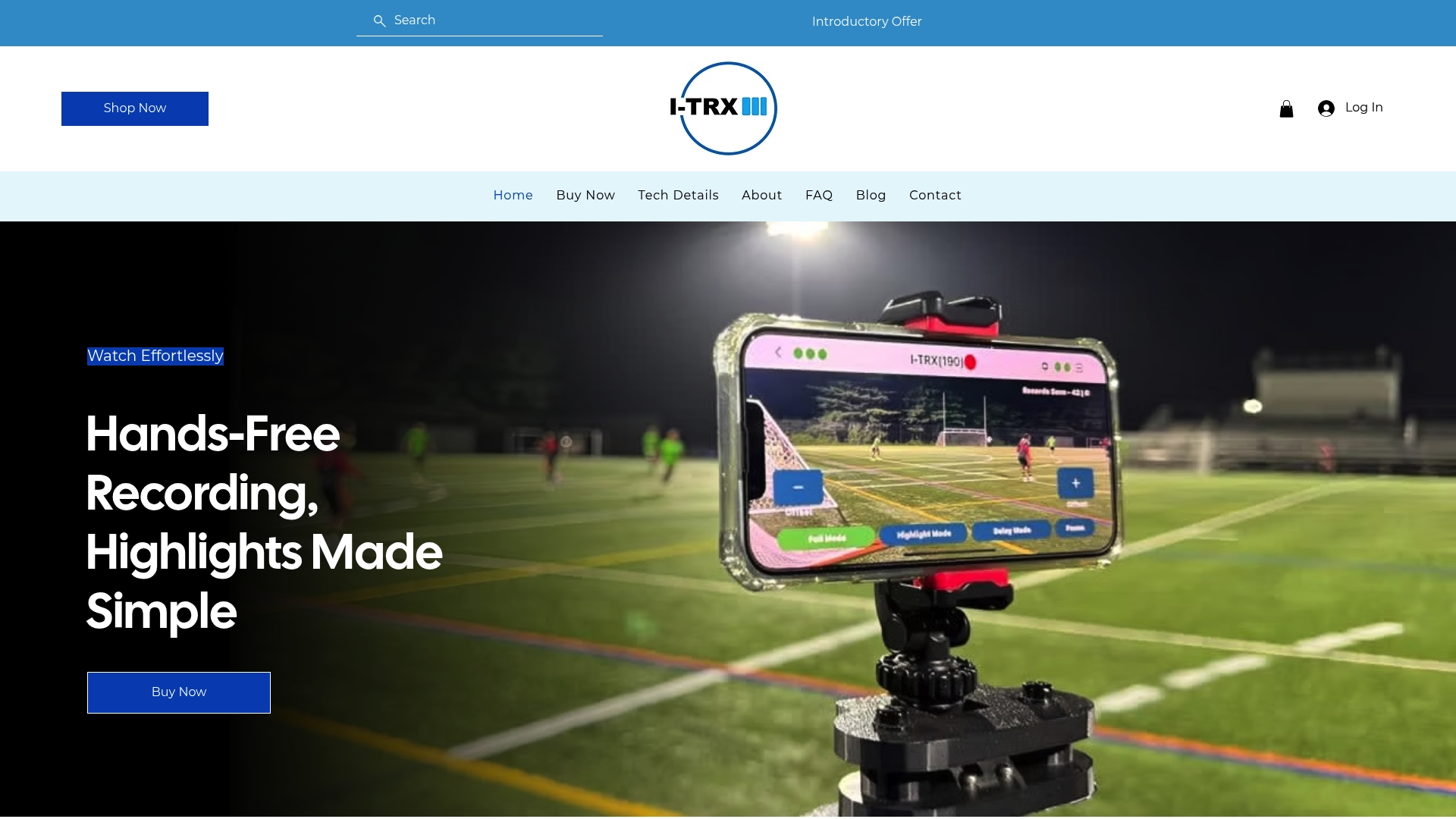
Our wearable sensor keeps the camera locked on one athlete all game, clips save straight to an iPhone in real time, and Ultra Highlight Pro holds onto recent footage so a big play still gets captured. For setup specifics on filming days, our post on why every team parent benefits from automated capture is a good next read.
What this guide recommends | How I-TRX handles it |
Hands-free, single-player footage | Wearable sensor keeps the camera locked on one athlete |
Instant clip saving | Highlights save in real time to a connected iPhone |
No missed moments | Ultra Highlight Pro buffers recent play automatically |
Ready to see it in action? Visit our pricing page to check the current offer for the Automated Player Tracking Camera system.
FAQ
What counts as youth sports video analysis in this guide?
Here, it refers to automated single-player highlight capture: a wearable sensor paired with a tracking camera and app that records and saves an athlete’s clips without anyone filming manually. It’s distinct from coach-side tactical film review, which is a different use case entirely.
How long should a recruiting highlight reel be?
Most recruiters prefer reels of about 3 to 5 minutes with roughly 15 to 30 clips of an athlete’s best plays. Longer reels risk losing a coach’s attention well before the strongest footage appears.
Do I need written permission to film and share footage of my child at games?
School-maintained recordings may fall under FERPA, but parent-owned footage is generally treated differently, though many leagues now require written releases before identifiable footage is shared publicly. Check your specific league’s media policy before posting or sharing clips widely.
How does I-TRX save highlight clips during a game?
I-TRX’s wearable sensor keeps the tracking camera locked on one athlete, and clips save instantly to a connected iPhone as they happen. The Ultra Highlight Pro buffer also holds onto recent footage so fast plays aren’t missed even if the save command comes a moment late.
What video quality do recruiters expect from a highlight reel?
Recruiters generally expect 720p or 1080p footage shot horizontally from a steady, elevated angle. Shaky, low-resolution, or vertically shot clips make it harder for coaches to properly evaluate a play.
Sources
Comments