
Parents: 2 iPhone Sports Video Workflows That Deliver Recruiting Clips

The fastest reliable iPhone sports workflow is simple: steady capture at 60 fps (or 4K/60 when your model supports it), a quick trim and stabilize pass right on the phone, then sharing compressed highlights while archiving the raw clips. Parents who want to stay hands-free during the game have another route too: a wearable sensor system that tracks one athlete and sends highlights straight to an iPhone. Either path produces shareable highlights, recruiting-ready clips, and a game archive you will actually keep.
Equipment and Setup for Reliable Sideline Footage
The right gear for sideline filming is smaller than most parents expect. A sturdy tripod beats a monopod for fixed-angle games because it frees your hands and holds the frame steady through a full half, while a monopod only helps when you need to reposition quickly between plays. A gimbal earns its place only if you plan to roam and follow the action on foot, since it adds setup time and battery drain that a tripod never does.
Mounting height matters more than most accessories. For soccer and football, set the phone at 6 to 8 feet if you have elevated bleacher access, aimed to capture the full width of play. For basketball, a baseline or corner position around 5 feet works better than a tripod on the sideline, since the court is tighter. For baseball, position behind the backstop or along the first base line to capture the full diamond.
An external microphone adds real value for post-game interviews but rarely helps during live play, where crowd noise dominates anyway. A clip-on telephoto lens can help for far-field sports like soccer or baseball, but it costs you light in dim conditions.
Tripod for fixed-angle games; gimbal only when roaming is the plan.
Mount the phone at elevated heights for wide-field sports and lower when filming basketball at the sidelines.
Carry a power bank rated for at least one full phone charge.
Bring a case with at least 20 to 30 GB free, more if shooting ProRes.
Pro Tip: Test your mounting position for five minutes before warmups start. A frame that looks fine standing up often clips the far sideline once players are moving.
Camera Settings That Actually Work for Sports
Set your iPhone to 60 fps as the default recording rate for any sport with fast, unpredictable movement. It gives you smooth playback and enough headroom to slow footage down slightly in editing without obvious stutter. Switch to 120 fps only when you want true slow-motion highlights and the light is bright enough to support it, since higher frame rates need more light per frame.
Shutter speed follows a simple rule: start around 1/500 of a second for most field sports and move toward 1/1000 or faster when covering very fast action like a sprint finish or a slap shot. A slower shutter blurs motion in a way that looks sloppy rather than artistic in sports footage.
Action mode is worth using for roaming or handheld shots because it smooths out the bounce of walking or jogging while filming. It caps out at a maximum capture resolution of 2.8K and performs best outdoors in daylight, so pair it with the Action Mode Lower Light toggle for overcast days or early evening games, understanding that image quality drops as light fades.
ProRes capture produces gorgeous, edit-friendly footage, but the trade-off is storage. ProRes files can run up to 30 times larger than standard HEVC recordings, and recording 4K ProRes at 60 fps or higher often requires an external SSD with sufficient write speed to avoid dropped frames.
Default to 60 fps; reserve 120 fps for bright-light slow-motion highlights.
Shutter speed: 1/500 baseline, 1/1000 or faster for sprint-level action.
Action mode tops out at 2.8K and favors bright, outdoor conditions.
Use ProRes only when you have external storage ready to handle the file size.
A practical storage reality: ProRes files can be up to 30 times larger than HEVC, which means a single half of ProRes footage can fill a phone’s free storage fast.
Two Game-Day Shooting Routines That Actually Work
Most parents fall into one of two shooting styles, and both can produce usable highlights if you follow a routine instead of improvising each week.
The fixed-angle routine works best for soccer, football, and baseball, where the field layout is predictable.
Arrive early and set the tripod at your chosen height, framing wide enough to capture both sidelines.
Lock exposure and white balance once the teams are warming up, so lighting shifts during the game do not wash out your footage.
Record continuously rather than stopping and starting, since missed moments from stopped recording are far more common than storage shortages.
Note rough timestamps on your phone or a notepad when something highlight-worthy happens, so editing later takes minutes instead of an hour of scrubbing.
The roaming handheld routine suits basketball and sports where you want to follow one player closely.
Mount the phone on a gimbal and set Action mode before the opening whistle.
Follow your athlete rather than the ball, keeping them roughly centered in frame.
Lock exposure manually once you find good light, since Action mode’s stabilization can fight with auto-exposure hunting in changing light.
Tap the screen briefly to mark a highlight moment if your camera app supports in-recording markers, otherwise rely on your timestamp notes.
Post-game, the housekeeping takes five minutes and saves hours later: back up raw footage to a sideline camera checklist system or cloud service before you leave the parking lot, free up phone storage, and name files with the date, team, and opponent so searching for a specific game next season takes seconds.
Pro Tip: Lock exposure before kickoff, not during a tense moment. Fumbling with camera settings mid-play is how the best highlight of the game ends up blurry.
Editing Highlights on Your iPhone Without a Computer
The Photos app and iMovie handle quick trims well for parents who just want a 30-second highlight to send to grandparents. For anyone editing multiple clips into a single highlight reel, LumaFusion offers multi-track editing with more control over transitions and audio levels, which matters once you are stitching together five or six plays. If you shoot ProRes, Final Cut Camera on iPhone can capture directly into a format built for smoother professional editing later, though it carries the same storage demands as any ProRes workflow.

A fast editing recipe works the same way regardless of app: ingest your clips, mark in and out points around the action, trim the dead time before and after, stabilize or crop if the framing drifted, apply a light color correction pass, add a title card or slow-motion moment for the best play, then export.
Export settings depend on where the video is going. For social sharing, 1080p at 60 fps in HEVC keeps file sizes manageable while still looking sharp on a phone screen. For archiving or recruiting reels, export at 4K/60 in ProRes when your footage supports it, paired with external SSD storage for the larger files.
Photos or iMovie for quick single-clip trims.
LumaFusion for multi-clip highlight reels with audio control.
Final Cut Camera for ProRes capture feeding directly into editing.
Export 1080p/60 HEVC for sharing, 4K/60 ProRes for archiving.
Sport-specific analysis apps can add real value after the highlight reel is done, as detailed in Football Analytics for Coaches. Apps like Coach Kai import clips directly from your photo library and layer on drills or performance metrics, which turns a highlight clip into a coaching tool rather than just a keepsake.
Sharing Highlights Fast and Archiving the Full Game
A compressed clip in the team group chat is the fastest way to get a highlight to other parents right after the game. For longer clips, an unlisted YouTube link avoids the file-size limits of messaging apps while staying private to anyone without the link. For recruiting purposes, a cloud storage link gives a coach or recruiter a clean way to view full-quality footage without downloading a massive file.
File size and quality pull against each other. Social posts hold up fine at 1080p/60 in HEVC, while recruiting reels benefit from the sharper detail of 4K ProRes archives kept on external storage.
Team chat: compress to 1080p for fast, reliable sending.
Long clips or full games: unlisted YouTube link.
Recruiting footage: cloud link in original quality, not re-compressed.
Archive naming: date, team, opponent, so files stay searchable years later.
Two backups matter more than one perfect backup. Keep raw footage on an external SSD and a cloud service, since a single failed drive should never mean losing a season of games. For slow connections, compress before uploading and schedule larger uploads overnight rather than fighting a stalled progress bar during the game.
How Automated Tracking Changes the Workflow for Parents
A sensor-based system changes the job entirely: instead of operating a camera, you wear a small sensor pack that lets the camera track and record one athlete automatically, with highlights saved and ready to view on an iPhone shortly after they happen. That setup removes the manual framing, exposure locking, and constant attention that a phone-only routine demands throughout a game.
No manual follow: the system tracks the sensor, not the ball or the crowd.
Highlights arrive on your iPhone without an editing pass.
Best suited for parents who want consistent single-player footage every game, not just the games they remember to film well.
Phone-only shooting still wins for team-wide or multi-angle coverage, since tracking systems are built around one athlete at a time.
Readers comparing the trade-offs in more depth can look at how automated player tracking changes youth sports highlight capture or review the underlying tech details behind the sensor and tracking pipeline.
What Years of Sideline Filming Actually Teaches You
The single biggest lesson from shooting sports on a phone is that consistency beats gear. A $20 tripod used every single game produces a better archive than an expensive gimbal used twice before it sits in a closet.
Do lock your exposure before the action starts. Do not chase every play with the zoom, since a steady wide shot you can crop in editing beats a shaky zoomed one you cannot fix. For parents who would rather watch the game than operate a camera, a hands-free tracking option is worth a look.
— John
Get Hands-Free Highlights With I-TRX
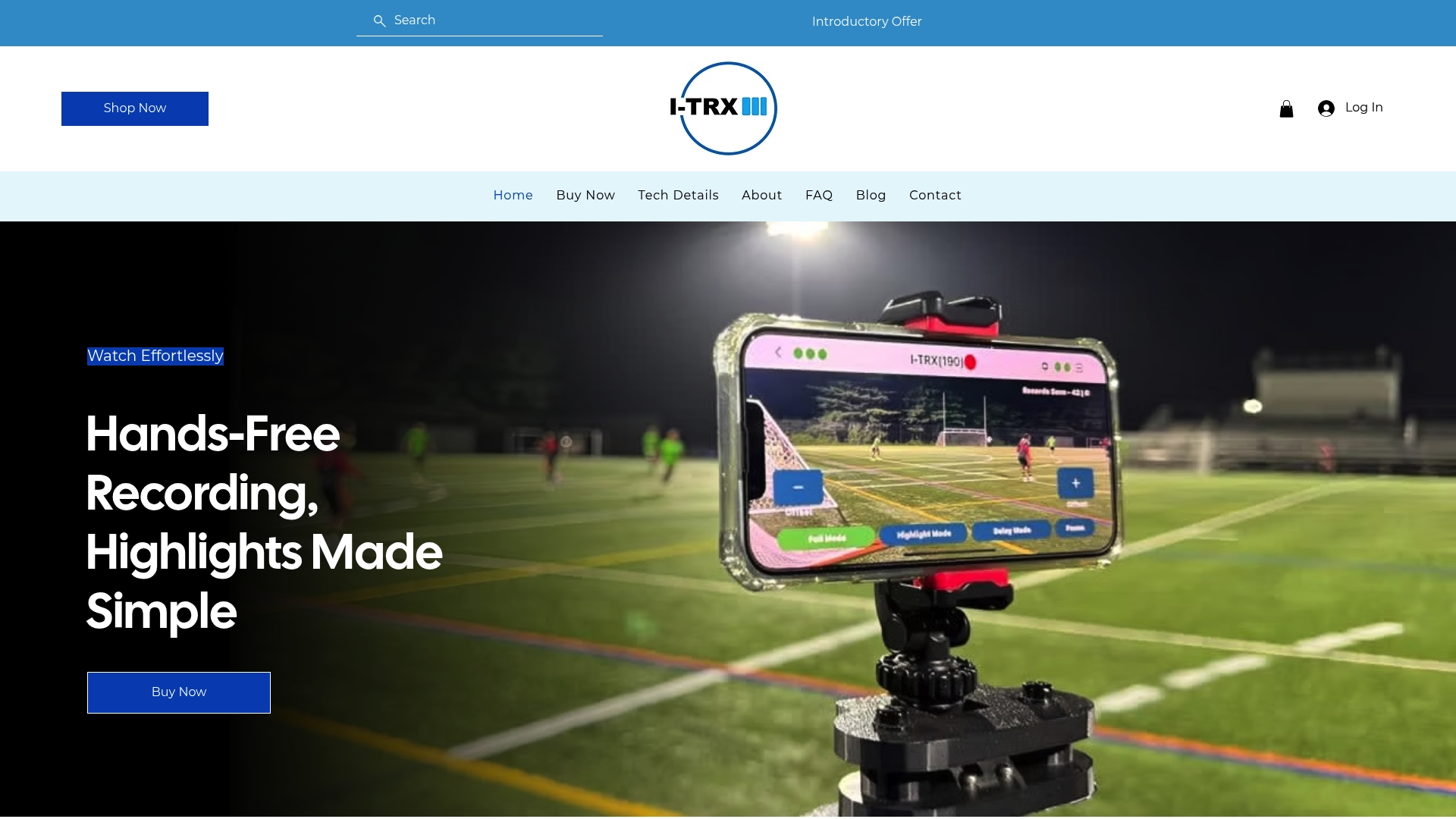
We built our Automated Player Tracking Camera so you can watch your child’s game instead of operating a camera through it. A small sensor worn by your athlete lets our system track and record them automatically, saving highlights straight to your iPhone without manual filming or editing.
The system is available without ongoing subscription fees.
Instant highlight saving means clips can be ready to share soon after the play happens.
Built for single-player tracking, so the camera follows one athlete regardless of where the ball goes.
Our Automated Player Tracking Camera is priced at $849 one time. Visit our pricing page to see what is included and get your system before the next game.
FAQ
How do I take good sports videos on an iPhone?
Mount your phone on a tripod at a height that captures the full field or court, lock exposure and white balance before play starts, and record continuously at 60 fps rather than stopping and starting. A steady wide shot you crop later beats a shaky zoomed shot every time.
What is the best free app for sports video analysis?
Several sport-specific apps, including Coach Kai, let you import footage directly from your photo library and add performance metrics or drills. Check each app’s current pricing, since free tiers and features vary.
Is there a sports mode on an iPhone camera?
The iPhone camera includes Action mode, which smooths out motion while filming handheld or on the move and works best in bright, outdoor conditions. It caps out at a maximum resolution of 2.8K, so it trades some resolution for stability.
What are the best camera settings for filming sports?
Shoot at 60 fps as a default, with 120 fps reserved for slow-motion highlights when light allows. Set shutter speed around 1/500 for most action and push toward 1/1000 or faster for very fast movement like sprints.
Should I buy a gimbal or a tripod for filming games?
A tripod suits fixed-angle games like soccer or baseball, where you frame once and record continuously. A gimbal only pays off if you plan to roam and follow one player on foot throughout the game.
Comments